Manage your site
Photo & media galleries
Create a gallery of images, videos, panoramas, or virtual tours for your property.
Galleries group your images, videos, panoramas, or virtual tours so you can place them on your site.
Create a gallery for your property
- Open Properties and choose your property.
- Under Property Content, go to Galleries and choose New gallery.
- Pick a Type - Images, Videos, Panoramas, or Virtual Tours - and give it an Internal title (for your reference, not shown to renters).
- Add your media, set the gallery to Enabled, and save. It's now available to place on your site.
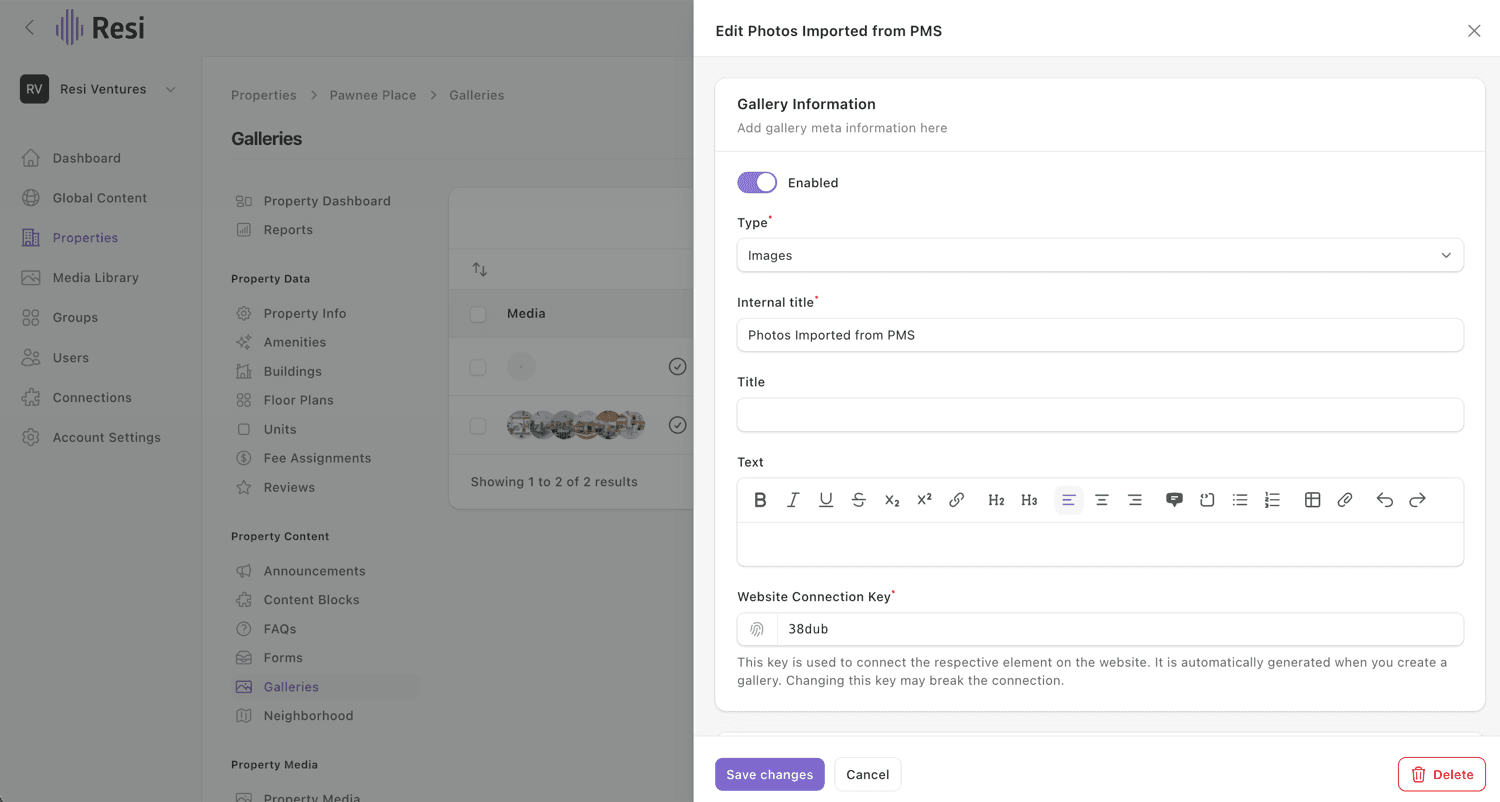
Leave the "Website Connection Key" alone.
It's created automatically to link the gallery to the right spot on your site - changing it can break that connection.
Managing several properties?
The same content types also live under Global Content, where you create an item once and reuse it across every property. See Shared vs. property content.
Last updated on