Start here
Finding your way around
The Property Dashboard, the left sidebar, the quick-action icons, and reports.
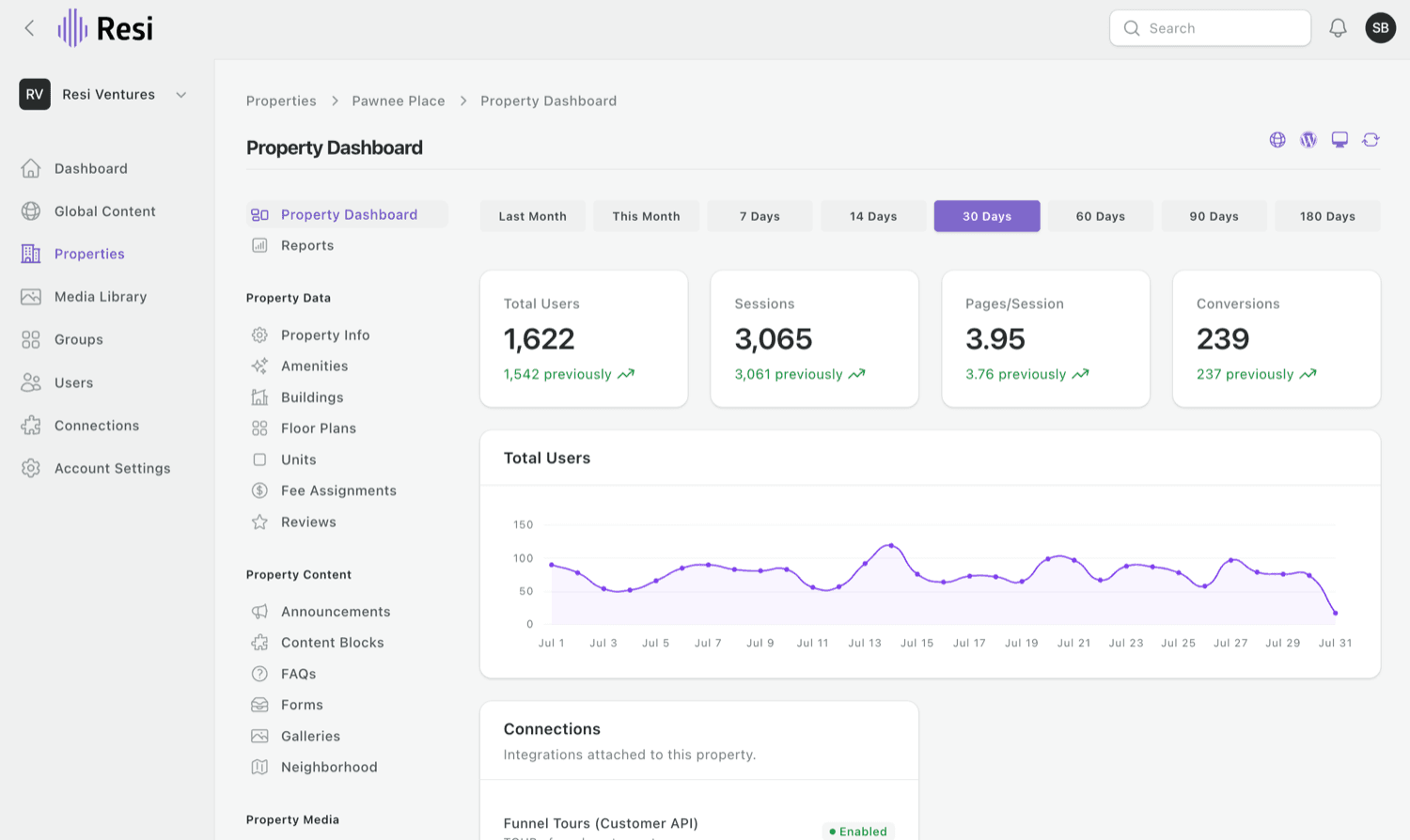
When you sign in, you land on your Property Dashboard - the home base for a property, with your website traffic and quick stats up top.
The left sidebar
This is how you move around:
- Dashboard - your home base: a snapshot of how your site is performing - visitors, sessions, and conversions - over a time range you pick, plus quick stats and the connections active on your property.
- Properties - open a property to reach its floor plans, units, pricing and fees, amenities, and Reports (occupancy, availability, pricing, and leads).
- Global Content - galleries, announcements, content blocks, FAQs, and forms you can reuse across sites.
- Media Library - one home for all your images. Upload photos, organize them into folders, tag them so they're easy to find, and reuse the same image anywhere on your site - in galleries, content blocks, and announcements.
- Account Settings - account-wide defaults, like your global fallback image and office hours (available to admins).
Along the top
- Top left: the Resi logo brings you home. If your login covers more than one community, the account switcher (your company name, just below the logo) moves between them - no separate login per site.
- By the "Property Dashboard" heading: a small row of icons for quick actions - open your live website, preview it, and refresh your site data to push recent changes live.
Reports and analytics
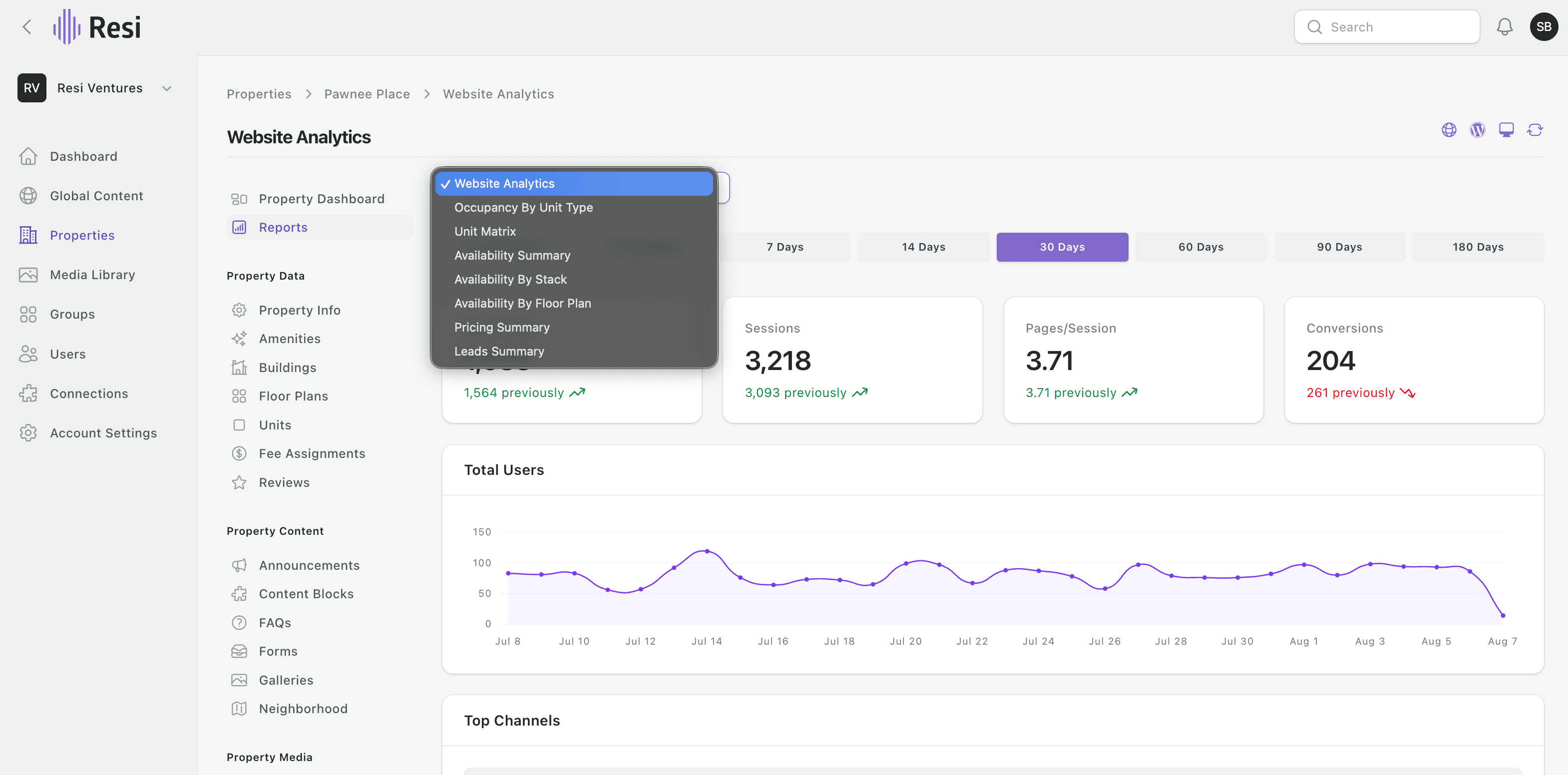
Open a property and choose Reports to see how your site is performing - website analytics up top (sessions, pages/session, conversions), plus occupancy, availability, pricing, and leads reports. A quick read without leaving Resi.
Last updated on