Content blocks
Where an edit goes, what you can change yourself, and how to edit or bulk-import content blocks.
Content blocks are reusable pieces of text (and optional media) - a neighborhood description, a leasing blurb, a policy note. They're used on Resi Theme sites, so depending on how your site was built, you may or may not manage content this way. If you're not sure whether your site uses content blocks, email support@getresi.com and we'll confirm.
Where does an edit go? Dynamic vs. static
The thing that trips people up is knowing where to make a change. Parts of a page are dynamic - they pull live from your Resi data (units, pricing, content blocks) - and parts are static text typed straight into the page. In the site builder, dynamic sections carry a small indicator:
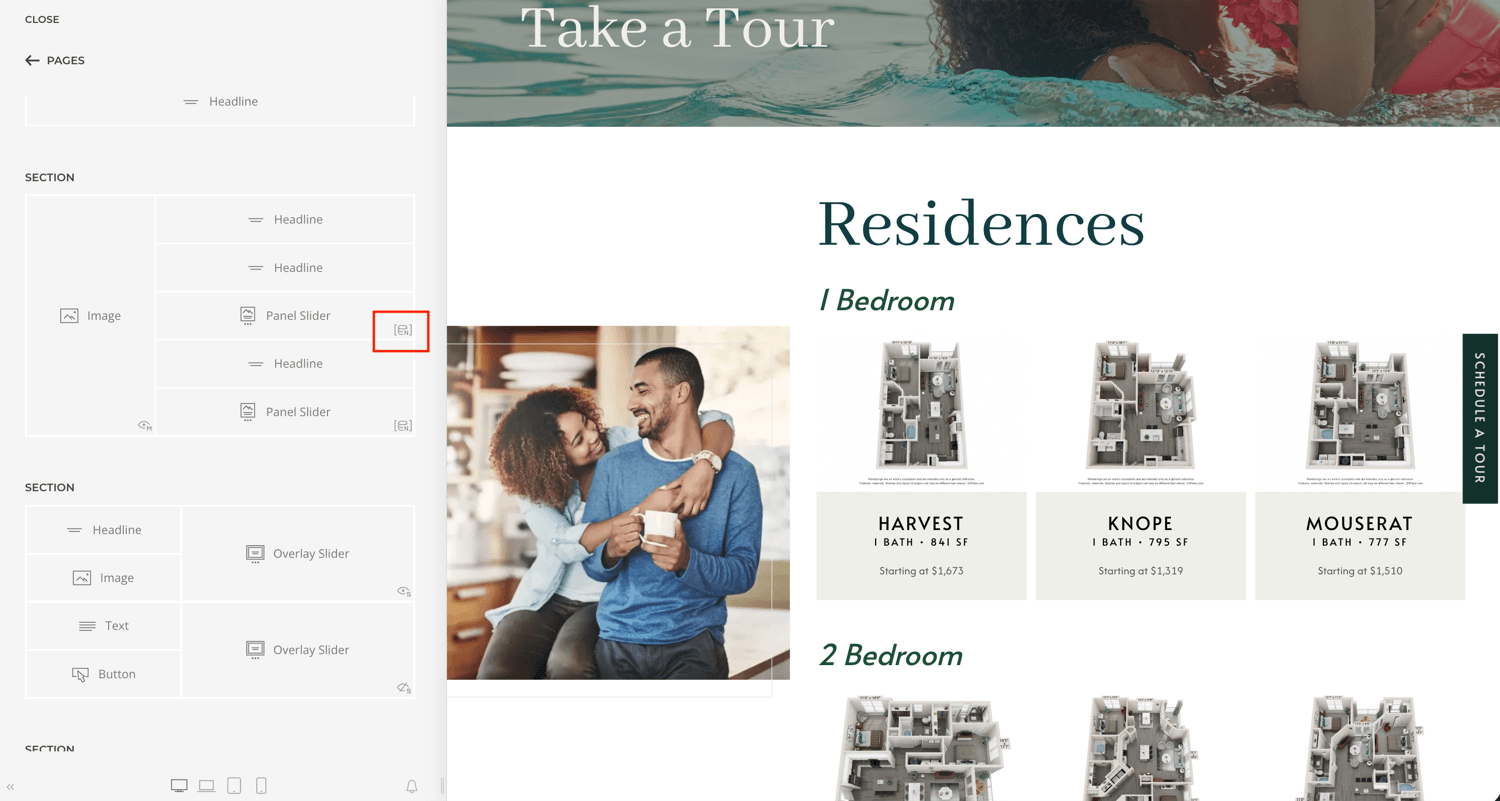
- If a spot is dynamic, change it in Resi - edit the content block, the unit, and so on. Retyping it on the page won't stick, because the page just displays what's in your data.
- If a spot is static, edit it right there in the builder.
What you can change yourself, and what to request
- Edit existing content - the words, images, and links in a block: do it yourself, anytime, right here.
- A brand-new section, or a layout or animation change - send it to support. New sections have to be built and mapped to your site by the Resi team, so they come through a quick request rather than self-serve.
Rule of thumb
Stay in Content Blocks for wording and images. The moment you want a whole new section or a design change, that's a support request - we'll build and map it, then you edit its content here like any other block.
Edit a content block on your property
- Open Properties → your property → Property Content → Content Blocks. Each row is one block, named for where it lives (for example "Homepage intro" or "Amenities blurb").
- Open the one you want. The editor has three tabs: Content (the text), Media (an image), and Settings (Internal Tags for your own organizing).
- Edit the text and save. Your change publishes on the next sync - usually a minute or two.

Updating a lot at once (optional)
Choose Import Content Blocks, use Download example CSV to get the layout, fill it in, and upload. Re-importing an existing block updates it rather than creating a duplicate.
Managing several properties?
Content blocks also live under Global Content for reuse across sites. See Shared vs. property content.
Last updated on